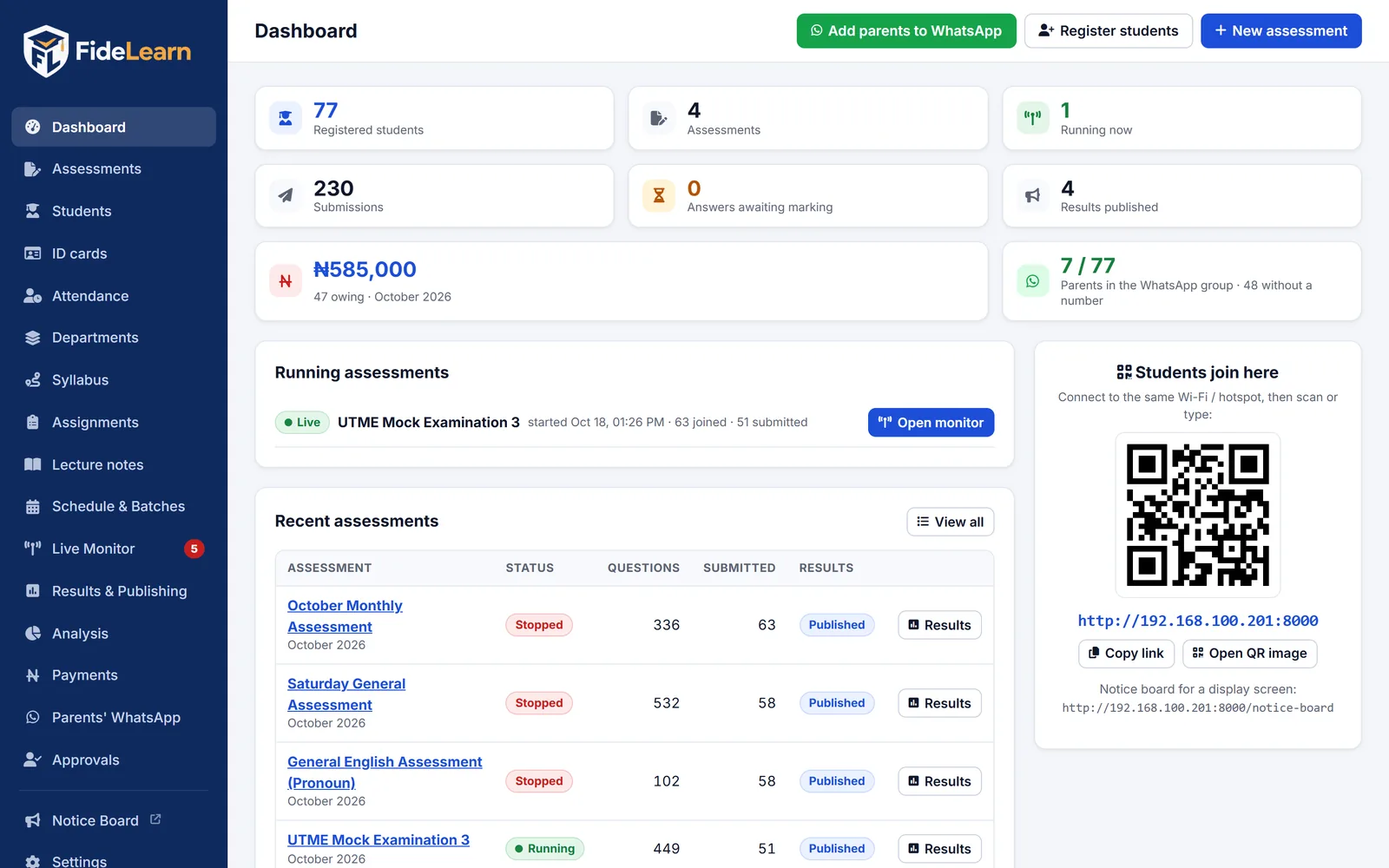
1. Sign up and connectYour site, your centre computer, linked together
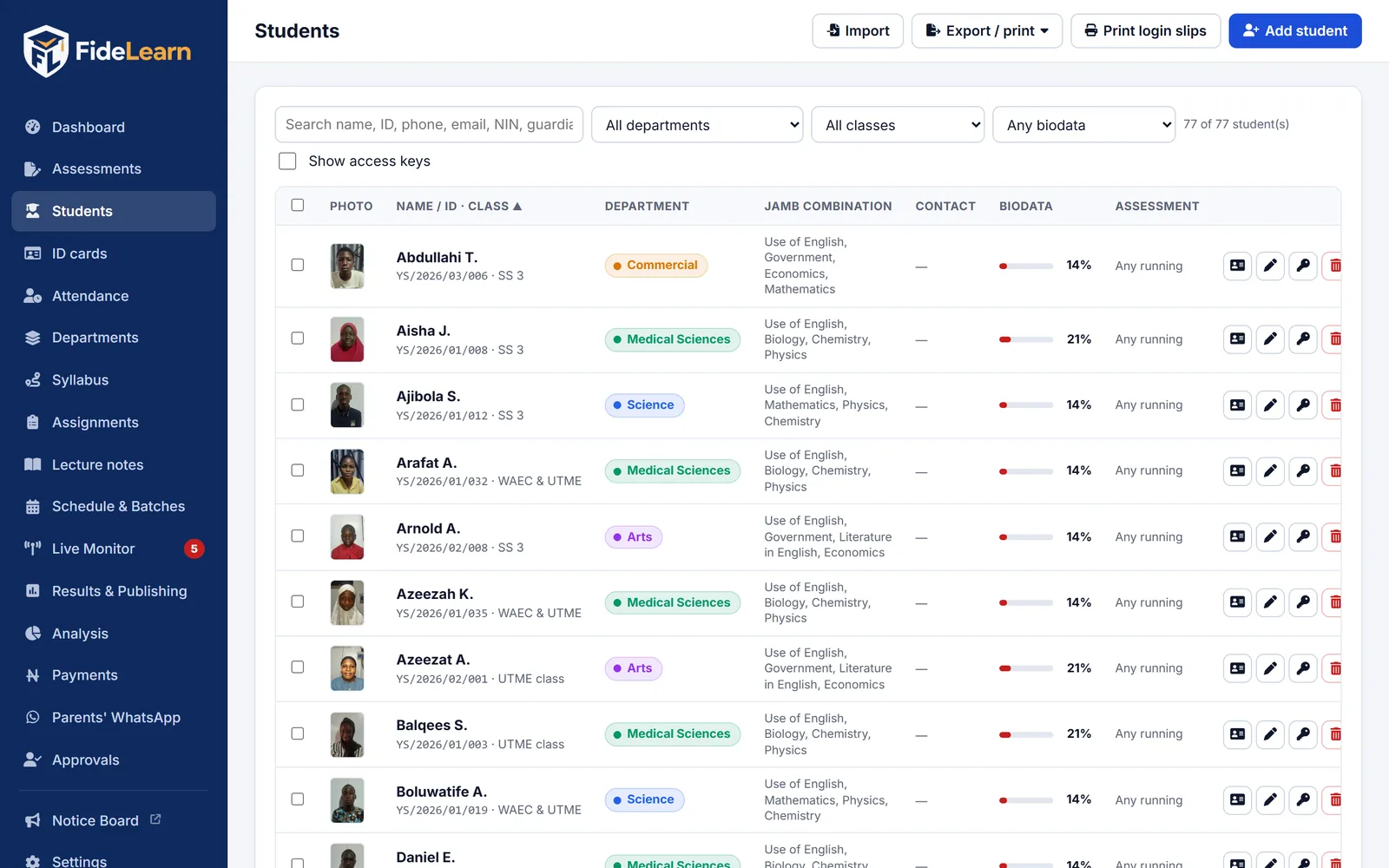
2. Set up your schoolBranding, students, subjects and your first exam
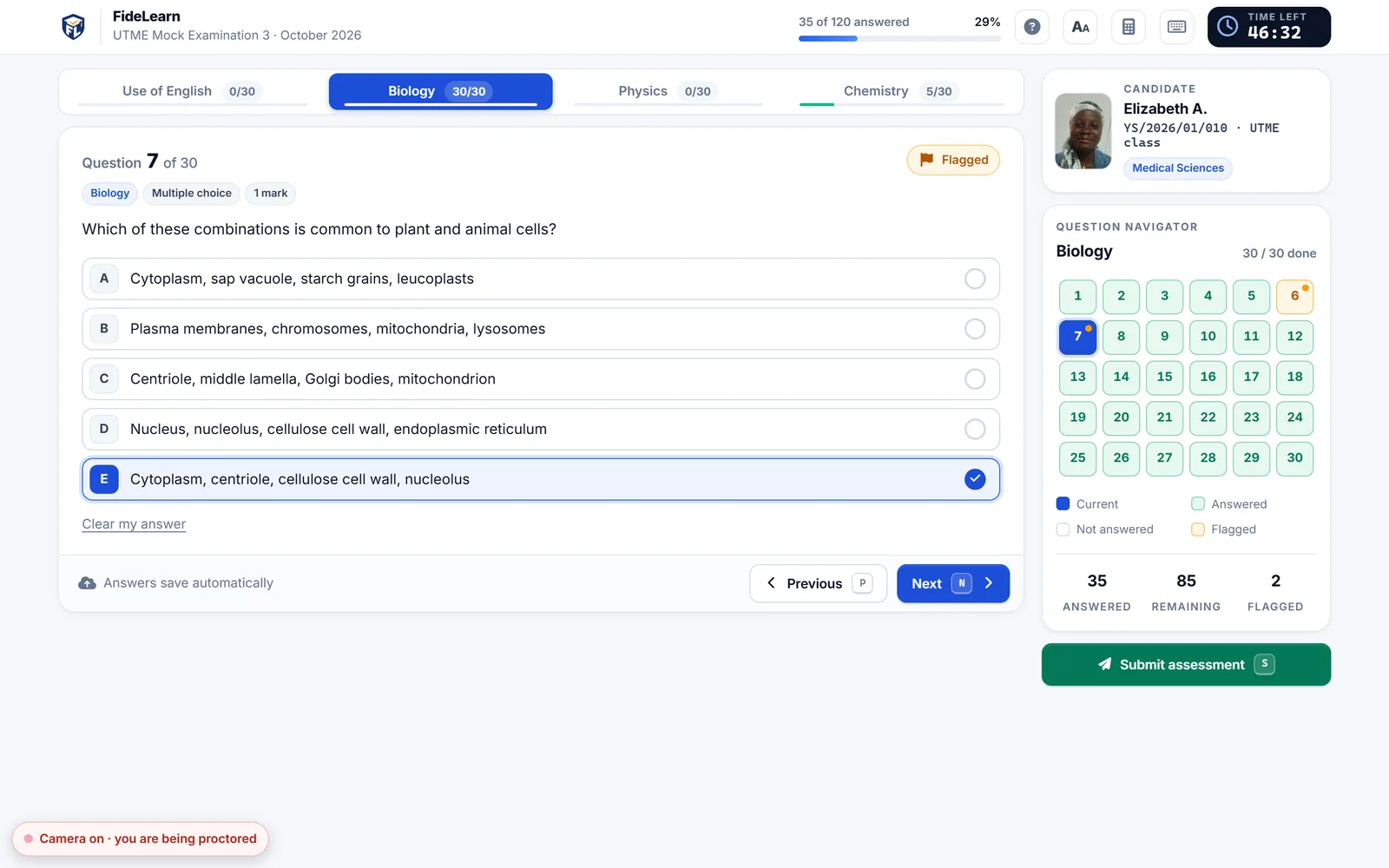
3. Exam hallLocked exam computers and live proctoring
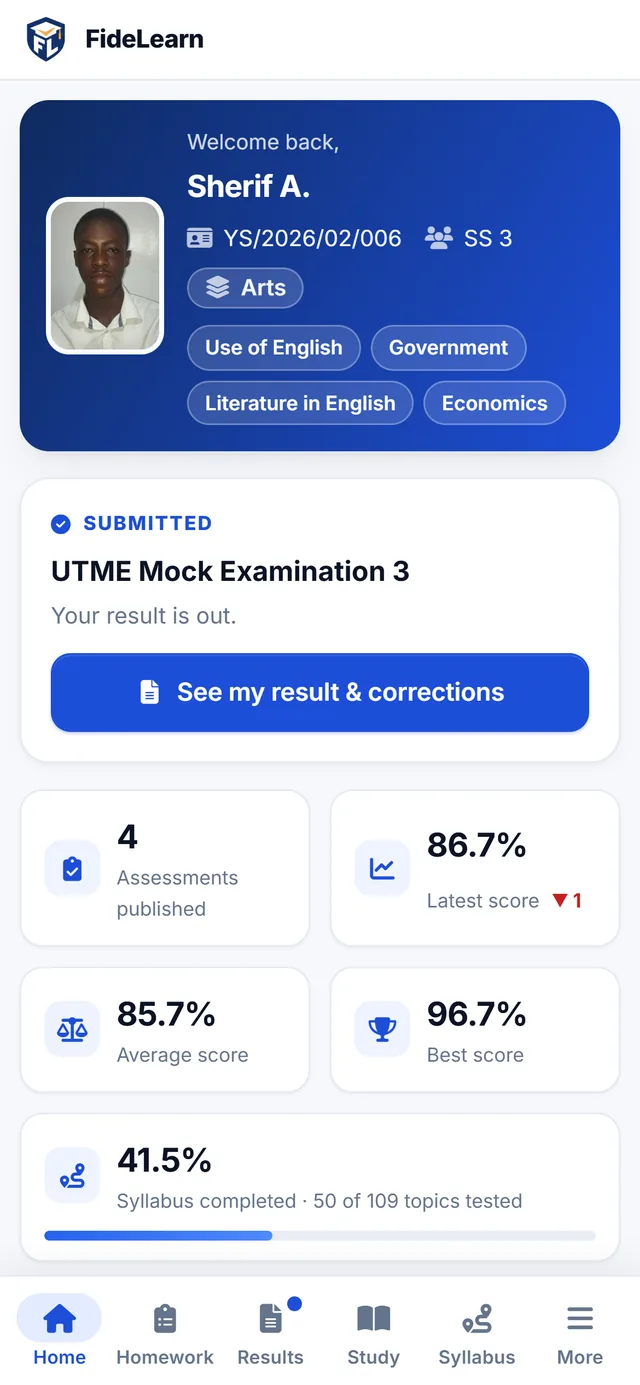
4. Daily runningAttendance, fees, results, then go live
Stage 1 · Sign up and connect
Create your school's site
5 minutes School owner or administrator
Every school gets its own FideLearn site at its own address, for example yourschool.fidelearn.com. Choose the address on the sign-up form, using a short form of your school's name.
Open Create your school's site and fill in your school's name, the address you want, and the administrator's name, e-mail and phone.
Choose a plan. You can start on Free (up to 30 students) and move up at any time.
Send the form. Within one working day we set up your site and e-mail you the FideLearn download link, your download code and your sync key (steps 2 and 3).
Your school's addresses will be:
Students and parentsLog in, results, homework, fees, ID cardsyourschool.fidelearn.com
Staff and administratorsEverything you manageyourschool.fidelearn.com/admin
Your exam hallThe centre computer on your own Wi-Fi (step 2); its address is on its dashboardhttps://192.168.x.x:8443
ID card checksAnyone scanning a card's QR code lands hereyourschool.fidelearn.com/verify/…
FideLearn is in early access: our team creates each school's site personally and helps with your first setup. Self-service sign-up with instant activation is coming.
Install FideLearn on the centre computer
20 minutes One computer at your centre
FideLearn runs on a computer at your centre. It is your school's master copy: you set everything up there, and it copies your work to your online site. Exams run on it, over your own Wi-Fi, so they keep working when the internet doesn't. Candidates' computers connect to it.
What
Recommended
Why
Centre computer
Windows 10/11 (64-bit), 8 GB RAM, SSD, Intel Core i3/i5 (2016+) or Ryzen
Runs the exams, live proctoring and attendance for up to about 50 candidates
Exam computers
Windows 10/11 (64-bit), 4 GB RAM; a webcam for proctoring
Candidates sit exams in FideLearn Browser
Network
A good Wi-Fi router or switch; centre computer on a network cable
Steady connections for every candidate
Internet
Any connection, even intermittent
Only for syncing to your online site
Optional
USB 2D/QR scanner (about ₦30,000) or any Android phone
Scanning ID cards at the gate
Click the download link in your welcome e-mail, or open fidelearn.com/download and enter your school's address and download code. Run FideLearn Setup: it installs to C:\FideLearn and opens on its dashboard. (Step-by-step help)
The dashboard shows Students join here: the address and QR code candidates' devices use on your Wi-Fi.
Setup allows FideLearn through Windows Firewall on private networks; if Windows still asks, choose Allow for private networks.
Give the centre computer a fixed address in your router (a "DHCP reservation"), so the address never changes between exams.
Under Settings → Backup, click Back up now after setup, and before every big exam.
Close other programs on the centre computer during exams, and keep it plugged into power and an inverter or UPS.
Connect it to your online site
5 minutesSettings → Online sync
Sync copies your school's work from the centre computer to yourschool.fidelearn.com, so students and parents can check results, homework and fees from home, and you can follow your school from anywhere.
On the centre computer, open Settings → Online sync and choose The centre computer (master).
Paste your site address and the sync key from your welcome e-mail, then save.
Click Sync now. From then on FideLearn syncs by itself whenever there is internet.
Live video and alert clips never leave your centre. You can also keep webcam snapshots off the online site under Settings → Live webcam proctoring.
Secure your admin account
5 minutesSettings → Hosting & access
On the centre computer itself, the admin area opens without a password. From anywhere else, including yourschool.fidelearn.com/admin, it asks for the admin password.
On the centre computer, open Settings → Hosting & access and set a strong admin password: at least 12 characters, not used anywhere else.
For safety, the password can only be set or changed on the centre's own computer, never from the internet.
Give it only to staff who manage the school. Students never need it; they use their Student ID and access key.
Never share the admin password on WhatsApp groups or write it on a whiteboard. If it leaks, change it at once on the centre computer.
Stage 2 · Set up your school
School profile and branding
10 minutesSettings → School branding
Do this whole stage on the centre computer. It copies everything to your online site by itself.
Your school's name, motto and address appear on the student portal, result sheets, PDFs, ID cards and the notice board.
Enter the school name exactly as it should be printed, the motto and the full address.
Under Settings → Exam rules, choose your defaults: whether students may see answers after submitting, and whether exams submit automatically when time runs out.
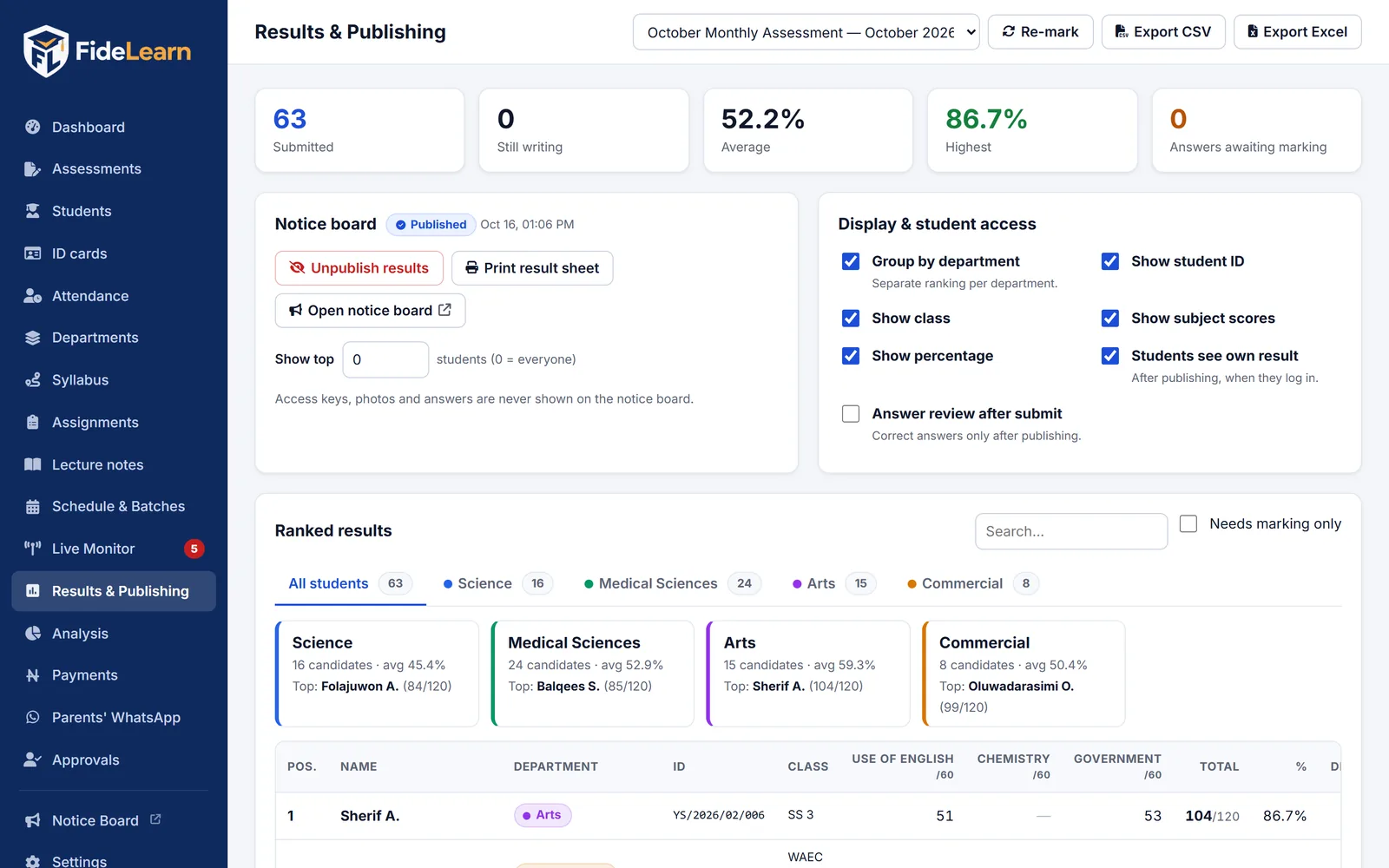
Under Settings → Results, choose what the notice board shows (student ID, class, subject scores, percentage).
yourschool.fidelearn.com/admin
Departments and subjects
10 minutesDepartments → New department
Departments group students and decide their subjects. Most schools use Science, Arts, Commercial and Medical Sciences, or your own classes.
Click + New department, give it a name and colour, and list its subjects (for UTME, Use of English plus three others).
Set a short registration code for each department. It forms part of the Student IDs, for example YS/2026/01/004.
Add your students
15–30 minutesStudents → Import
There are three ways to add students. Use whichever suits you; most schools import once, then let new students register themselves.
Import from Excel: download the template under Students → Import → Import template (CSV), fill one student per row, then upload it. You can include a folder of passport photos.
One at a time:Add student for late joiners. Set the date joined correctly, because fees are counted from it.
Self-registration: share your registration link (dashboard → Register students). Students fill their own biodata and photo; you approve them under Approvals.
Then print Students → Print login slips. Each slip has the student's ID and private access key for signing in.
Clear, front-facing passport photos matter: they appear on ID cards, the attendance gate and the proctoring screen, so staff can recognise every student.
yourschool.fidelearn.com/admin/students
Questions and your first exam
30 minutesAssessments → New assessment
Click + New assessment. Set the title, the duration and the subjects (sections).
Add questions one by one, or use Import CSV / Excel to bring in a whole bank. Pictures and reading passages are supported.
Turn on shuffle questions and shuffle options so neighbours see different orders, and allow the calculator where needed.
More students than computers? Use Schedule & Batches to split them into time slots automatically.
Before the real day, add a test student and sit the exam yourself, so you see exactly what candidates see.
yourschool.fidelearn.com/exam
Syllabus, lecture notes and homework
OptionalSyllabus · Lecture notes · Assignments
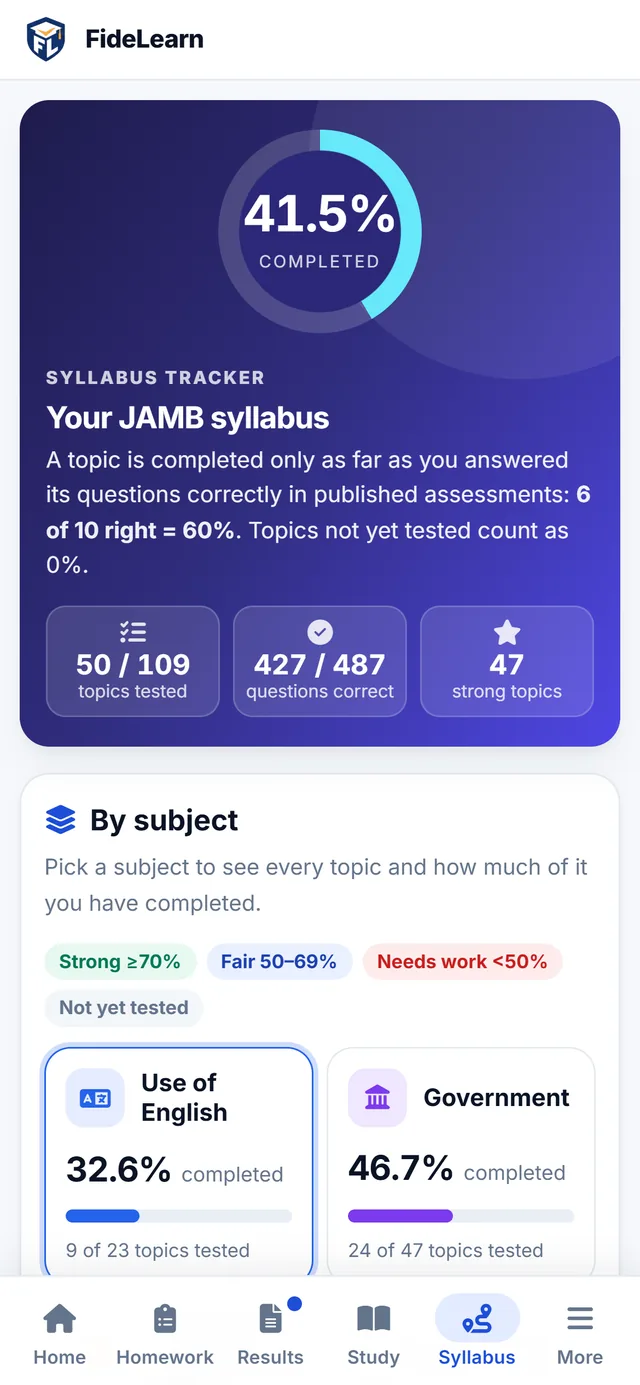
Syllabus: tag questions with topics, and every student sees how much of the syllabus they have completed, based on correct answers.
Lecture notes: upload notes by subject and topic; students read them on their phones.
Assignments: timed homework with a deadline, marked automatically and counted toward syllabus progress.
Stage 3 · Your exam hall
FideLearn Browser on exam computers
3 minutes per computer Growth and Pro plans
FideLearn Browser locks each exam computer to your exam: full screen, no other websites or apps, and no false malpractice from Windows pop-ups.
Download FideLearn Browser Setup from fidelearn.com/download and run it on each exam computer, as an administrator. Everything Windows needs is included, so no internet is required.
Enter the centre computer's address (from its dashboard) and choose a supervisor PIN.
Candidates open FideLearn Browser from the desktop and see your school's login page.
Supervisor exit: Ctrl + Alt + Shift + Q, then the PIN. To set up many computers at once, ask us for the one-line silent install command.
The first time the setup file runs, Windows may show "Windows protected your PC". Click More info → Run anyway. To make FideLearn Browser required, turn on Settings → Exam integrity → Only allow FideLearn Browser once every exam computer has it.
Turn on proctoring
10 minutesSettings → Live webcam proctoring
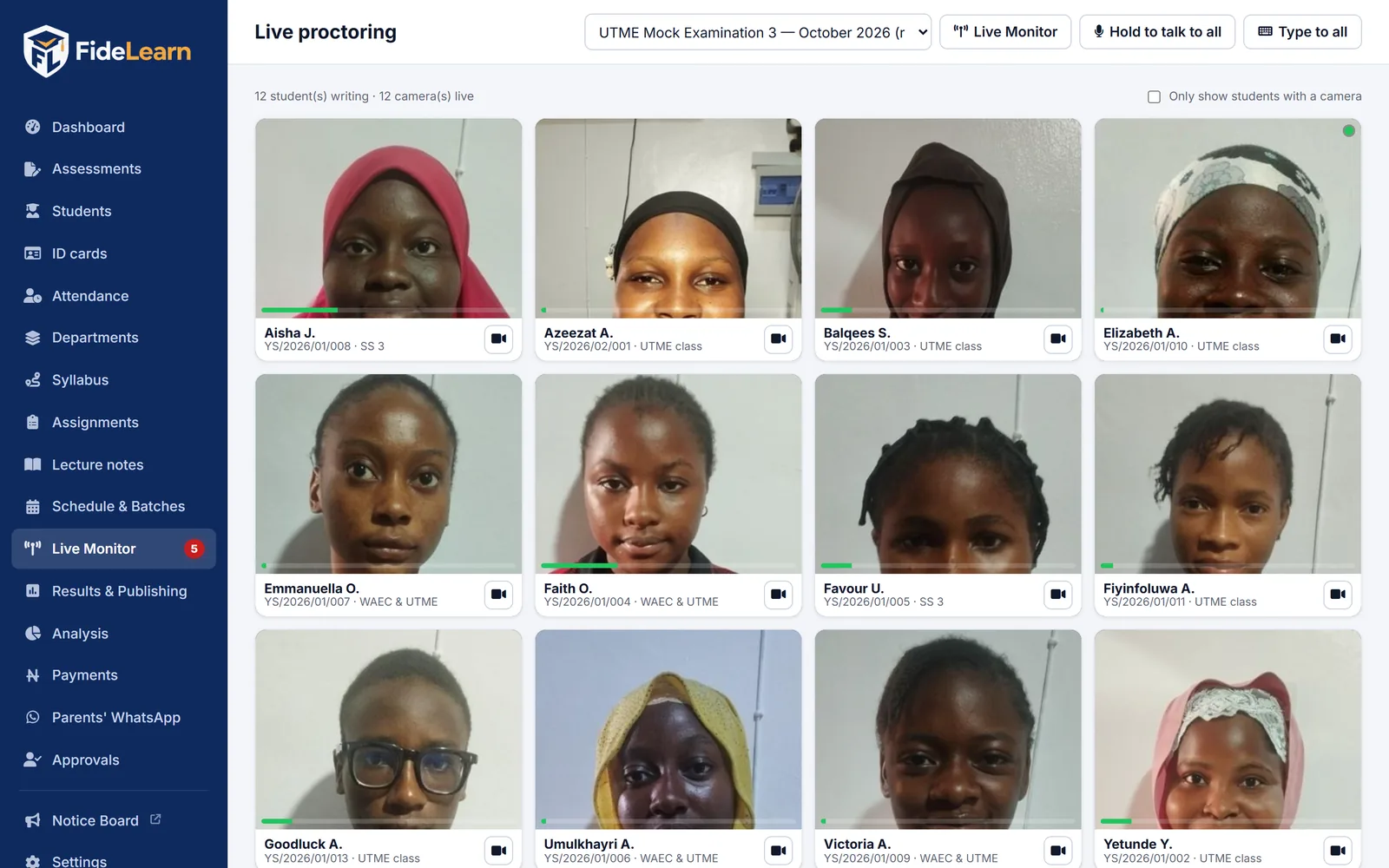
Tick Turn on live webcam proctoring. Leave Live video on, and Live videos at the same time at 4.
Keep Save a short video clip with each alert on, for evidence.
Run a 5-minute test exam: open Live Monitor → Proctor (webcam), check every camera shows, then click a candidate for live video.
Tell candidates before the exam that it is proctored. The exam screen also shows "you are being proctored".
yourschool.fidelearn.com/admin/proctor
Stage 4 · Daily running
ID cards and attendance
30 minutesID cards · Attendance
ID cards → Card design: upload your logo and the principal's signature, then set the card colour and how long cards are valid.
Issue cards to everyone, then use Bulk print (A4): 9 cards per sheet, printed double-sided at Actual size (100%), with cut marks.
Attendance → Times: set "late after" and "leaving early before".
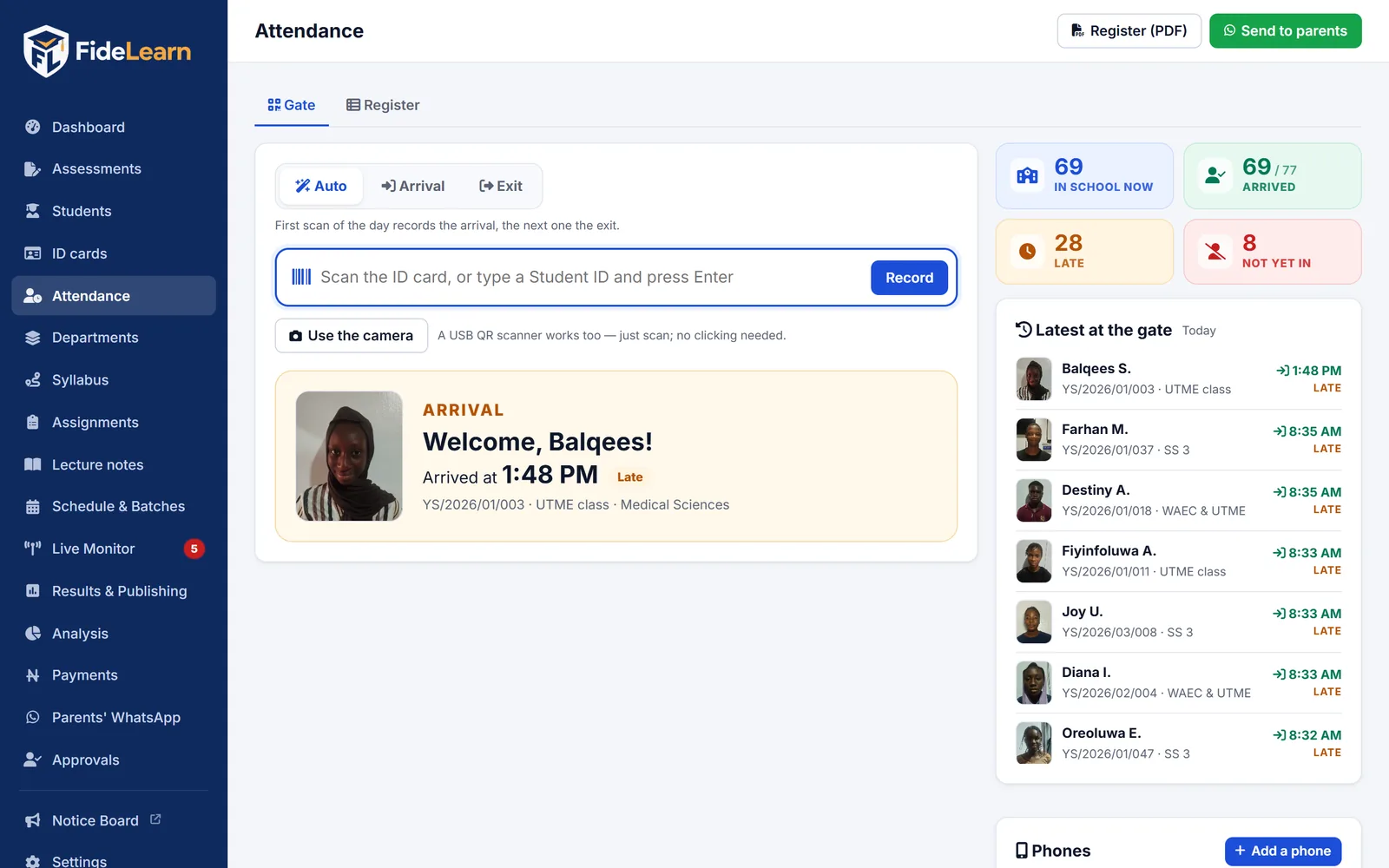
At the gate, plug in a USB QR scanner, use the webcam, or register an Android phone (Attendance → Phones → Add a phone).
Each afternoon, Send to parents shares the day's register with photos in your parents' WhatsApp group.
Tick Turn on the payment tracker, then choose your plan (monthly, bundle or termly), the fee and your bank details.
Fees are counted from each student's join date: before the 14th, the full month; from the 14th, half.
Record payments under Payments, or approve the proofs students upload. Students see polite reminders for unpaid months.
Under Parents' WhatsApp, set your parents' group link and invite each parent with one click.
Run exams and publish results
On exam dayLive Monitor · Results & Publishing
Start the exam from Assessments. Candidates sign in with their Student ID and access key.
Watch Live Monitor: who is writing, progress, time left and integrity alerts. You can extend time, send a message or force-submit.
After the exam, open Results & Publishing and check the rankings, then click Publish. Students see their results on their phones, and the notice board updates.
Use Analysis to see which topics each class should revise.
yourschool.fidelearn.com/admin/results
Pilot, then go live
One short test exam We can join you
Before your first real exam, run a short pilot with 5 to 10 students. Tick each item as you go; this page remembers your ticks on this device.
0 of 12 done
Stuck on any step? Contact us. Every early-access school gets a guided setup at no extra cost.
See FideLearn with your own school in mind
A free, friendly walk-through of exams, live proctoring, attendance and results — with your questions answered.